Ink & toner · Troubleshooting
Printer Says “Cartridge Not Recognised”? Fixes for HP, Canon, Epson and Brother Printers
Troubleshoot cartridge-not-recognised errors by checking cartridge code, protective seals, contacts, installation and reset steps.

In this guide · Jump to a section
Quick answer: Confirm that the cartridge code matches the exact printer model, remove all specified protective seals, reseat the cartridge and restart the printer. Do not force a cartridge that does not slide into place normally.
Printer names can be deceptively similar. Record the complete model—including letters and regional suffixes—and compare it with the compatibility list. For inkjets, verify every colour code; for laser printers, distinguish toner from separate drum or waste units.

Common causes
| Cause | Check | Action |
|---|---|---|
| Wrong family | Cartridge and printer codes | Use the correct code |
| Packaging remains | Tape, clips, sealing strip | Remove only as instructed |
| Poor contact | Clean and dry contact area | Reseat carefully |
| Not fully seated | Latch and orientation | Reinstall evenly |
Reseat the cartridge safely
Switch the printer off normally. Remove the cartridge according to its manual and check for shipping covers, pull-tabs or vent seals. Avoid touching the imaging drum, printhead nozzles or exposed contacts. Reinstall the cartridge evenly until it seats as designed.

Restart and review recent changes
Restart the printer and computer, clear the print queue and allow startup checks to finish. If the error began immediately after a firmware update, review the printer manufacturer's support information. Avoid factory reset unless specifically directed.
Shop ink and toner
FAQs
Why is a new cartridge not recognised?
Likely causes include the wrong code, packaging left in place, poor contact or incomplete seating.
Does high-yield toner always fit?
Only when the printer lists that high-yield version as compatible.
Can I clean contacts with water?
Use only the printer manufacturer's recommended method and ensure contacts are dry before installation.
Products linked in this guide
-
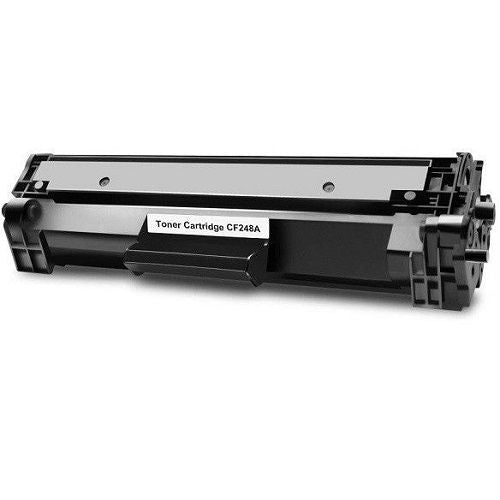
HP CF248A 48A Compatible Toner Cartridge | Black $30.00 NZD · Sold out View current product details
-
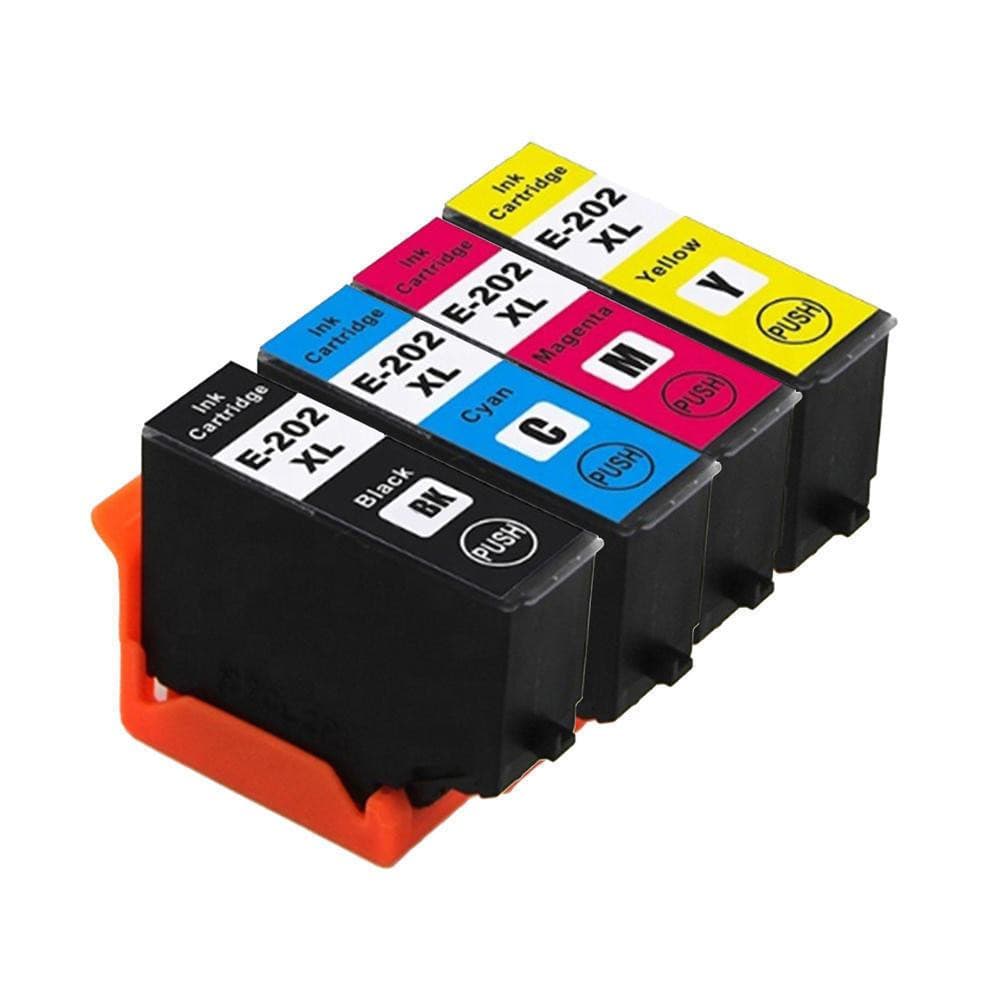
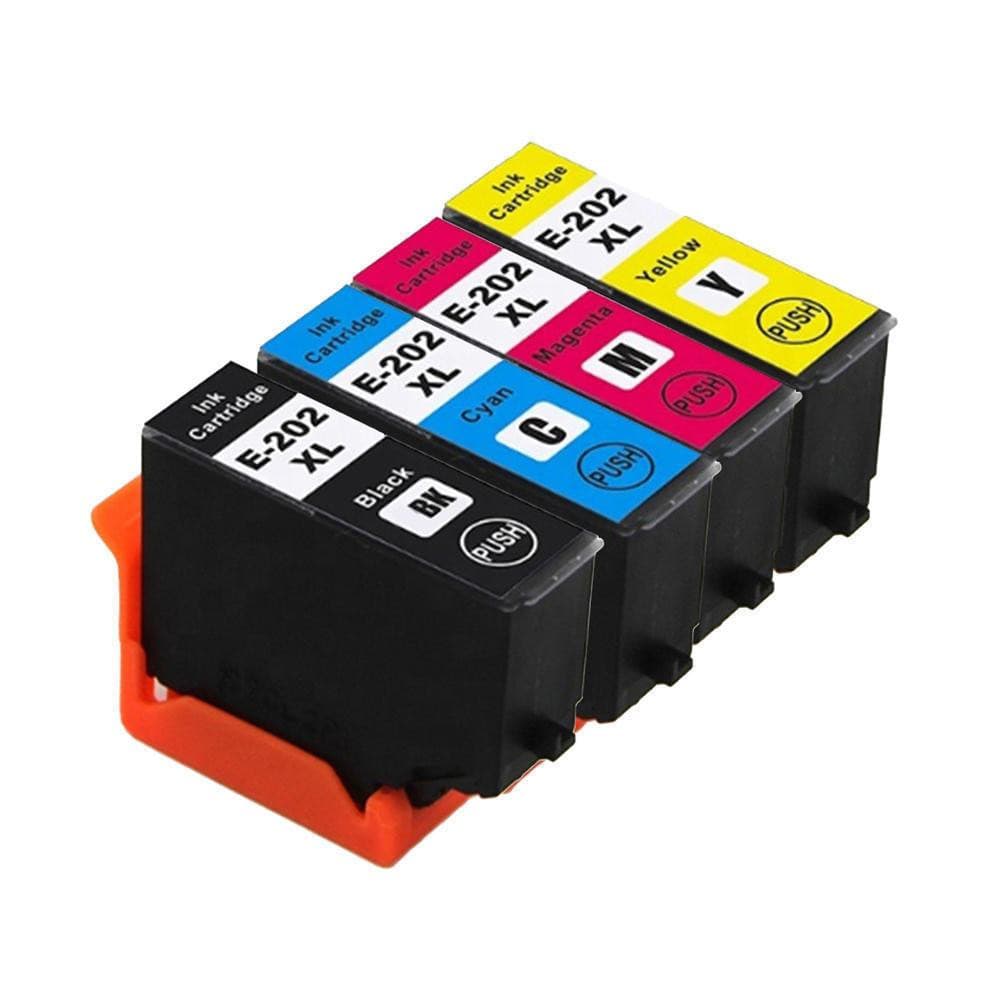
4 x Compatible Ink 202xl 202 T202xl E-202xl for Epson xp5100 WF2860 $30.00 NZD View current product details
Check the product page for current specifications, compatibility and availability.